Professional Development & Micro-Certification Series
Spatial Learning Micro-Certificate
A self-paced course for educators and trainers who teach with VictoryXR. Discover why learning by doing in 3D works, master VXRLabs and VXR Nexus, practice with hands-on missions, and design a lesson you can teach right away.
About 6 hours, self-paced 12 modules in 3 parts 7 hands-on missions Certificate of completion
A VictoryXR account. You’ll need a VXR Nexus account with a VXRLabs license. Don’t have one? Contact our team.
A device. A Meta Quest headset gives you the full experience. A PCVR headset, or a Windows or Mac computer, also works.
VXRLabs installed. If you haven’t installed it yet, follow Installing VXRLabs.
Time to explore. Plan for about six hours in total, spread across as many sessions as you like.
Earn your certificate
Finish all 12 modules, including your hands-on missions and capstone lesson design, then pass the final assessment. Enter your details, and your certificate is generated on the spot, ready to download, print, or add to LinkedIn. We’ll also email you a PDF copy.
VictoryXR keeps a record of every completion, so your certificate can always be verified.
has completed the VictoryXR Professional Development & Micro-Certification Series, demonstrating the ability to design, deliver, and assess spatial learning experiences with VXRLabs and VXR Nexus.
Month Day, YearDate issuedVXR-SLMC-XXXXXXCertificate IDVictoryXRIssued by
Certified
Frequently asked questions
Who is this course for?
Educators, professors, trainers, instructional designers, and administrators who teach with VXRLabs or are about to start. No VR experience is required.
Do I need a VR headset?
A Meta Quest headset gives you the full experience, and the hands-on missions are designed for it. You can also use a PCVR headset, or a Windows or Mac computer with keyboard controls.
Is there a live training session?
No scheduling needed. The hands-on missions in Module 11 replace the old weekly training sessions, so you can practice whenever it suits you. For live help, use the Help Center in Nexus.
How is my progress saved?
Progress saves automatically in your browser on this device, so it’s best to use the same browser from start to finish. If you switch devices or clear your browser data, your progress won’t come with you. If that happens, open each module you already finished and use Mark module complete at the bottom of the page. You’ll still need to pass the final assessment.
How do I earn the certificate?
Complete all 12 modules, including the missions and capstone, then pass the 10-question final assessment with at least 8 correct. Enter your details, and your certificate is generated right away, with a PDF copy emailed to you. VictoryXR keeps a record of every completion.
Can my whole team take the course?
Yes. Each person completes the course in their own browser and claims their own certificate. Administrators can use Nexus to make sure everyone has a VXRLabs license.
Where can I get help?
Visit the Help Center in Nexus for video tutorials and live chat, browse the VXRLabs documentation, or email support@victoryxr.com.
Want to start over?
Part 1 · Module 1
Welcome to Spatial Learning
Start here. Learn how the course works, what spatial learning is, and how VictoryXR’s platforms fit into your teaching.
15 min 3-question knowledge checkNot started
How this course works
This self-paced course is built for instructors, team leads, and instructional designers who teach with VXRLabs. It’s organized into three parts:
Part 1
The Science of Spatial Learning
Why immersive, hands-on experiences work, grounded in learning science and VictoryXR research.
Part 2
Mastering VXRLabs & Nexus
Set up your organization, run sessions, build in Creator Spaces, and track learning in Nexus.
Part 3
Applied Learning & Certification
Complete hands-on missions, design a spatial lesson, and earn your micro-certificate.
Each module ends with a short knowledge check. Answer every question correctly to complete the module. You can retry as many times as you need, and you’ll see an explanation for every answer.
Your progress
Progress saves automatically in this browser, so you can stop and pick up where you left off. Use the same browser and device when you return, because progress isn’t synced between devices.
Welcome from VictoryXR
Welcome video · 4:37
Integrating VXRLabs into Any Instructional Materials
VictoryXR’s learning-by-doing philosophy is built into every simulation, lesson, and resource. Students don’t just read about new ideas; they live them. Plug-and-play simulations drop straight into existing lessons, and Creator Spaces give you the freedom to design your own experiences.
What is spatial learning?
Spatial learning is learning by doing inside three-dimensional, interactive environments. Instead of reading about a chemical reaction or studying a diagram of a cell, learners step into the space, pick up the tools, and make something happen, together with classmates or on their own.
When students move, manipulate, build, and talk through ideas, learning becomes more memorable and more engaging. And because what students do in VR can be observed and recorded, it also becomes more measurable. You’ll explore all three ideas in Part 1.
Why VR belongs in instruction
Virtual reality lets learners get hands-on with experiences that would normally be:
Too expensive
Run a fully stocked chemistry lab or take a field trip across the world without the cost.
Too dangerous
Investigate a crime scene or practice a risky procedure with zero risk to anyone.
Too difficult
Explore structures too small to see, complete dissections, or rehearse a high-stakes conversation.
Impossible
Interview a historical figure like Thomas Edison or visit places no class could ever reach.
The VictoryXR platform at a glance
VXRLabs
The immersive app for Meta Quest, PCVR, Windows, and Mac, with simulations, Creator Spaces, 2D and 360° videos, mixed reality, quizzes, Nodulus, and Conversational AI.
VXR Nexus
The web-based account, license, and learning management system at account.victoryxr.com. Manage users and licenses, build lesson plans, and view student metrics.
AI Creator Studio
Create AI lessons led by a virtual instructor and conversational scenarios with a virtual avatar, then find more in the AI Library.
What you’ll need
A VictoryXR account in Nexus with a VXRLabs license assigned to you.
A supported device. A Meta Quest headset gives the full experience, and you can also use a PCVR tethered headset or a Windows or Mac computer.
About six hours, which you can spread across as many sessions as you like.
A lesson or unit you teach that could come alive as a hands-on experience.
Reflect: Your seed idea
Think of one topic in your course that’s hard to teach with text and slides alone. What makes it hard? Jot it down. You’ll design a spatial lesson around it in Module 12.
Private to you and saved in this browser. Saved
Knowledge check
0 of 3 correct
Answer every question correctly to complete this module. You can try again as many times as you need.
1. Which statement best describes spatial learning?
2. Which platform do you use to assign licenses and build lesson plans?
3. A lesson is a strong candidate for VR when the real-world version is…
How do we know learners are actually learning when they’re in a headset? Everything in this module, and much of this course, answers that question.
Performance assessment: the gold standard
Performance assessment, watching learners actually carry out a task, is one of the most authentic ways to know whether they’ve learned. A student who can complete the titration, collect the evidence, or deliver the diagnosis has shown you what they know.
VR is a natural fit for performance assessment, but it adds a challenge: instructors can’t always stand beside every student in the virtual space. VXRLabs was designed to add a layer of observation you wouldn’t otherwise have.
Simulations in VXRLabs include built-in trigger points. As students work, events such as completing a step, answering an in-headset question, or even dropping a beaker are recorded and reported back to the instructor of record in Nexus. The result is an itemized receipt of each student’s experience.
You’ll find this evidence in three places in Nexus:
Student Metrics: Open Educator Center > My Classes, select View for a class, then View Metrics next to a student. You can export metrics as a CSV file.
S.A.N.T.A.: See each student’s status and current module in VXRLabs in real time.
My Activity: See a log of your own activity in VictoryXR apps.
Problems for educators, solved by educators
The challengeHow VictoryXR helps
Measuring performance can feel subjective.
Anchor every lesson in measurable objectives and a rubric (Modules 4 and 12), so what you observe maps to clear criteria.
How do I know what a student is doing in the headset, or during an asynchronous experience?
Student Metrics give you an itemized receipt of each student’s experience, and S.A.N.T.A. shows who is in the app and which module they’re in.
Is my students’ data safe?
Student accounts don’t need an email address or personal details. You create the usernames and passwords, so you decide what identifies each student.
How do I know it’s working?
Become an expert in observational analysis: document, interpret, and act on what students do (Module 5).
Use generic usernames, such as student-a and student-b, when you want an extra layer of privacy. Team leads can create student accounts without email addresses from Organization Management > Users & Students > Add Students.
Knowledge check
0 of 3 correct
Answer every question correctly to complete this module. You can try again as many times as you need.
1. Why is performance assessment especially valuable in VR?
2. Where can an instructor review what each student completed in-headset, including built-in assessments?
3. Which statement about student accounts is true?
We enjoy games for real, measurable reasons: clear goals, immediate feedback, a visible sense of progress, and the freedom to try again. When those mechanics show up in learning, engagement rises, and engaged learners are more likely to remember what they practiced.
Growth Engineering defines gamification as applying game mechanics such as experience points, levels, leaderboards, and rewards in non-game settings to make difficult tasks more palatable. It taps into our desire for status, achievement, competition, and belonging. Read the Growth Engineering article
Children learn best through play, and that doesn’t change as we get older. What changes is our motivation. Even high-stakes programs like medical and nursing school benefit from engaging, low-risk practice. The goal is to prove that a learner can achieve a task, and making that task engaging doesn’t reduce its educational value.
Game mechanics you’ll find in VXRLabs
Mechanic
In VXRLabs
Try this
Clear objectives
Simulations with built-in tutorials and step-by-step tasks
Share the objective before students enter the headset.
Immediate feedback
Quizzes & Assessments modules with built-in questions
Debrief the results together right after the session.
Challenge and retry
Escape-room style experiences such as the Great Gatsby Escape Room
Let students fail forward, then discuss what changed.
Competition
Quizzes for The King’s Labyrinth, built with Quiz Maker in Nexus
Turn a review session into a team challenge.
Collaboration
Multiplayer rooms where the whole class works together
Assign roles such as leader, recorder, and presenter.
Creation
Creator Spaces and Nodulus, VictoryXR’s node-based programming
Challenge students to build a game or simulation.
How does higher education get in the game?
Gonzaga University’s look at game-based learning points out that higher education is traditionally slow to change, while students arriving on campus increasingly expect games and interactive media to be part of how they learn. Institutions that adapt can meet learners where they are. Read the Gonzaga article
Watch: How video games can level up the way you learn
TED Talk · 12:29
How Video Games Can Level Up the Way You Learn · Kris Alexander
Kris Alexander describes overcoming cognitive overload in a traditional lecture, and how games naturally provide the clear objectives, real-time feedback, and progress tracking that traditional instruction often lacks. Those same elements are built into VictoryXR’s gamified simulations.
Reflect: Game on
Which game mechanic could make your seed lesson more engaging: a clear mission, a timed challenge, a team competition, or the chance to build something? How will you keep it rigorous?
Private to you and saved in this browser. Saved
Knowledge check
0 of 3 correct
Answer every question correctly to complete this module. You can try again as many times as you need.
1. Which set of features does gamification borrow from games?
2. Why use engaging, game-like experiences even in high-stakes programs such as nursing?
3. Which Nexus tool lets you create quizzes for The King’s Labyrinth?
Performance assessment shows whether a learner can put knowledge to work. Simulations, especially in VR, let you see that knowledge in action. Two frameworks explain why.
Bloom’s Taxonomy: the language of measurable learning
When you write a lesson plan, the most important thing you can do is use objectives that are measurable. You can’t look inside a learner’s head to confirm they “learned the parts of the body,” but you can watch them label, compare, or construct something. Bloom’s Taxonomy gives you that language, starting with basic recall and building to creating something new. Select a level to see its action verbs and a VR example.
Students will identify and label the four chambers of the heart on a 3D model.
Create
Students will construct a model of blood flow through the heart and explain it to a partner.
Try it yourself. Build an objective for your seed lesson, and save it to your capstone planner.
Objective builder
Write a measurable objective for your seed lesson. Save it and it carries over to your capstone.
Your objective
Saved
Dale’s Cone of Experience
Edgar Dale organized learning experiences from the most abstract, like words and symbols, to the most concrete, like doing the real thing. Symbolic experiences are the least effective on their own, while direct, purposeful experiences, where learners actively engage in a task, lead to deeper learning. Select a tier to explore it.
Most abstract ↑
Most concrete ↓
Most abstract
Symbolic experiences
Learners work with abstract words, text, and symbols.
Visual symbolsVerbal symbols
In VXRLabs: Scratchpad notes, PDFs, and diagrams support an experience, but shouldn’t be the whole lesson.
Observing
Iconic experiences
Learners watch, listen to, or observe representations of the real thing.
DemonstrationsStudy tripsExhibitsEducational televisionMotion picturesAudio recordings & still photos
In VXRLabs: 360° field trips in Global Traveler, 2D videos, and 3D models to observe.
Most concrete
Direct & purposeful experiences
Learners do the real thing, or work with a realistic model or role-play of it.
In VXRLabs: Simulations, Creator Space builds, Nodulus projects, and Conversational AI role-plays.
A note on the numbers
You may have seen the cone with retention percentages attached, such as “we remember 10% of what we read.” Those figures weren’t part of Dale’s work and aren’t supported by research. The insight that holds up is the one VictoryXR designs around: concrete, purposeful experiences give learners a richer foundation than symbols alone.
Lee, S. J., & Reeves, T. C. (2007). Edgar Dale: A significant contributor to the field of educational technology. Educational Technology, 47(6), 56. View source
Where the frameworks meet
VictoryXR designs every simulation with both frameworks in mind. Learners should be doing something observable, such as designing, assembling, constructing, presenting, or speaking, inside a direct, purposeful experience. The top of Bloom’s Taxonomy meets the base of Dale’s Cone, and an experience that’s usually hard to measure becomes visible proof of learning.
VXRLabs experience
Dale’s Cone
Bloom’s levels it supports
Example task
2D and 360° videos Global Traveler field trips
Iconic
Remember, Understand
Describe three features of an ecosystem after a 360° field trip.
Simulations Labs, CSI, dissections
Direct & purposeful (contrived)
Apply, Analyze
Demonstrate a lab procedure, or examine evidence at a crime scene.
Conversational AI Historical figures, role-plays
Direct & purposeful (dramatized)
Apply, Evaluate
Interview Harper Lee, or defend your position in a rental negotiation.
Creator Spaces & Nodulus Build your own
Direct & purposeful
Create
Design a museum exhibit, or program an interactive game.
Knowledge check
0 of 4 correct
Answer every question correctly to complete this module. You can try again as many times as you need.
1. Which learning objective is measurable?
2. Which verbs belong to the highest level of Bloom’s Taxonomy, Create?
3. On Dale’s Cone of Experience, which experiences are the most concrete?
4. What’s true about the retention percentages often attached to Dale’s Cone?
Engagement and retention go hand in hand, which is why VXRLabs is built around active, hands-on play. Describing play is easy. The challenge is measuring it in a way that produces concrete data, and a proven model for that comes from early childhood education.
Lessons from the preschool classroom
Preschool teachers are experts in performance assessment. A three-year-old won’t write answers on a test, so teachers observe, document, interpret, and act on what they see. That same cycle works for learners of any age, and VXRLabs handles the first two stages for you.
In a traditional test, fifteen failed attempts would cost a student points. In a performance assessment, a non-success can be just as informative as a success. Did the student break fifteen beakers because they don’t understand the procedure, or because they skipped the steps that come before the quiz? The “what happened” matters far less than the “why did that happen.”
Good interpretation combines the data with everything you know about the experience and the learner. Is this student usually on task? Did they prepare? Were others stuck at the same point? Look at each event as objectively as you can.
Practice: read an activity log
Here’s a sample log for one student in a chemistry lab simulation. Read it, then answer the first two questions in the knowledge check below.
Sample data · Student C · Chemistry lab simulation
9:02Started simulation
9:03Skipped tutorial
9:05–9:14Titration attempt not successful (6 attempts)
9:09Dropped beaker (2 times)
9:15In-headset quiz: 2 of 5 correct
9:18Replayed tutorial
9:21Titration completed successfully
9:24In-headset quiz retake: 5 of 5 correct
This log is illustrative. The events recorded in Student Metrics vary by experience.
Implementation: turn insight into action
Once you’ve interpreted what happened, use it to make informed decisions for each learner and for your course:
Reteach
Revisit a step with students who struggled at the same point.
Extend
Give students who finished quickly a harder challenge or a build task.
Regroup
Pair students so peers who mastered a skill can model it.
Redesign
If many students hit the same barrier, adjust the lesson itself.
In practice
Use S.A.N.T.A. during class to see which module each student is in. After class, export Student Metrics as a CSV file to look for patterns across the whole group.
Knowledge check
0 of 3 correct
Answer every question correctly to complete this module. You can try again as many times as you need.
1. Based on the sample log, what’s the most useful interpretation of Student C’s session?
2. What’s a good next step (implementation) after reading Student C’s log?
3. What are the four stages of the Cycle of Knowledge?
VictoryXR partnered with Baton Global to study how instructors and students experience VR in higher education. The results make a strong case for spatial learning, and for using it often.
15 min 2-question knowledge checkNot started
Research design
In Fall 2023, professors from universities using VictoryXR’s platforms took part in a mixed-methods study. Professors described their courses in a Research Intake Form, then completed a Learning Event Survey after each use of VR in class. At the end of the semester, students completed a Student Learning Survey about how immersive, effective, and desirable learning with VR felt.
24professors
19universities
150+student survey responses
Fall 2023semester studied
What instructors reported
96%found their VR teaching experiences successful
98%found them effective
100%plan to use VR to teach the same content again
40%said VR exceeded their expectations, and all said it met them
Every professor believed VR had a positive impact on their students’ learning, and that it enabled learning experiences or outcomes that would otherwise have been unattainable.
What students reported
89%agreed VR enriched their learning experience
78%agreed VR had a positive impact on their learning outcomes
71%would consider registering for more courses that use VR
62%wished their course had used more VR
Frequency matters
Students whose professors used VR five to ten times during the semester responded even more positively than students whose professors used it two to four times. Both groups were positive overall.
Students who agreed, by how often their professor used VR
5–10 uses per semester2–4 uses per semester
VR enriched my learning experience
5–10 uses per semester · 95%
95%
2–4 uses per semester · 81%
81%
VR had a positive impact on my learning
5–10 uses per semester · 89%
89%
2–4 uses per semester · 60%
60%
0%25%50%75%100%
View as a table
Statement
5–10 uses per semester
2–4 uses per semester
VR enriched my learning experience
95%
81%
VR had a positive impact on my learning
89%
60%
Four takeaways
Consistency is key
Consistent use of VR throughout a course maximizes the benefits students perceive. Aim for at least five uses per semester.
Prepare for more
Teachers and learners want more VR in higher education. Professors expect incoming students to arrive with more VR experience and to use it constructively for learning.
It’s all good news
Regardless of age, frequency of use, subject, or content knowledge, students overwhelmingly viewed VR’s impact on their learning positively. The few negatives were mostly about Wi-Fi or technical glitches.
Future outlook
Professors and students both see value in VR, and professors are especially motivated to prepare students to be competitive in the workforce.
Put it into practice
Plan for at least five VR experiences across your course. You’ll sketch that plan in your capstone in Module 12.
Source: Baton Global, Teaching & Learning with Virtual Reality: VictoryXR Results, Spring 2024.
Knowledge check
0 of 2 correct
Answer every question correctly to complete this module. You can try again as many times as you need.
1. What did the research suggest about how often to use VR in a course?
2. What percentage of students agreed that VR enriched their learning experience?
Create your account. After your order is processed, open the Welcome to VictoryXR! email and select Get Started. Your licenses are redeemed to that email address automatically. To redeem them to a different email address, go to account.victoryxr.com/redeem and enter the code from the email. If a team lead invited you, use the invitation email to create your account instead.
Set up or join your organization. The first time you sign in, choose your organization type. Select I’ve just purchased a VictoryXR product for the first time to start a new organization, or I want to join my school/business’s existing VictoryXR organization if a team lead invited you.
Tour the Nexus Dashboard. The Dashboard has three sections: Products (such as VXRLabs), Add-ons (such as the CTE bundles), and Tools & Links (My Activity, Help Center, and My Layouts). The left-hand menu takes you to Organization Management, Educator Center, the Asset Catalog, Messages, your To-Do List, My Files, and the Help Center.
Add your people. Team leads open Organization Management > Users & Students. Select Add Users to invite instructors, team leads, or students by email address or CSV file, choose their role, and optionally grant licenses at the same time. Select Add Students to create student accounts without email addresses.
Assign licenses. A user needs a license to access content. Select the VXRLabs tile on the Dashboard, then License Management. Users with a license have a green checkmark, and users without one have a red X. You can grant and revoke licenses instantly.
Clear the network with your IT team. A headset cannot sign in to a school web filter the way a laptop can, so IT has to make room for it. Send your IT contact the Firewall and network access page and ask for two things: the VXRLabs domains and UDP ports 5055-5058 allowed, and the headsets registered by MAC address on a policy that uses that allowlist. Then test one headset in the room where your class will meet.
Install VXRLabs. On a Meta Quest 2, 3, 3S, or Pro, open the Meta Quest Store, search for “VXRLabs,” and select Get. For PCVR, Windows, or Mac, open the VXRLabs tile in Nexus and select VXRLabs for download instructions.
The step schools miss most
Allowing the domains is only half of it. Filters apply their rules per device, and a headset that IT has not registered usually lands on a default policy that ignores the allowlist. The tell-tale sign is a headset that works on a phone hotspot but not on school Wi-Fi. Ask IT to register the headsets by MAC address, put them on the policy that carries the allowlist, and confirm whether HTTPS inspection is switched on for them.
Team leads and instructors
Team leads
Manage the organization: add users and students, assign and revoke licenses, manage subscriptions, and customize organization settings.
Instructors
Teach with the Educator Center: classes, lesson plans, Quiz Maker, Student Metrics, and S.A.N.T.A.
Need to assign licenses but don’t have the option? Ask a team lead in your organization to change your role to Team Lead.
Get help anytime
Open Help Center from the left-hand menu in Nexus to find the instruction manual, video tutorials, FAQs, and Report A Bug, or chat with our team from the bottom-right corner. For step-by-step detail on everything in this module, see Getting started with Nexus in the VXRLabs documentation.
Knowledge check
0 of 3 correct
Answer every question correctly to complete this module. You can try again as many times as you need.
1. A student needs access to VXRLabs content. What two things must be true?
2. How can a team lead create student accounts without email addresses?
Navigate the app, launch experiences, host a room, and keep a class focused in VR.
25 min 3-question knowledge checkNot started
The lobby
When you open VXRLabs, you start in the lobby with the menu in front of you.
Sign In: Team leads and instructors use their Nexus email and password. Students use the username and password you created for them. If you aren’t signed in to a licensed account, you can only access select free experiences.
Profile: Edit your display name and avatar.
Play Now: Open the Catalog to choose an experience.
Join By Room Code: Enter a 6-digit room code and an optional 4-digit PIN to join someone else’s room.
Settings: Adjust volume, microphone, tracking, and controls.
Choose an experience
Select the filter icon in the Catalog to filter by module type or subject. Open any module to see whether it’s single player or multiplayer.
Simulations
Guided, interactive, subject-specific experiences with built-in tutorials, such as biology and chemistry labs and Crime Scene Investigation.
Creator Spaces
Virtual environments and classrooms you customize with 3D models, media, the 3D Pen, and more.
2D & 360° Videos
360° field trips in the Global Traveler Field Trip Room and Theater, and 2D videos in the Global Traveler Auditorium.
Mixed Reality Spaces
Blend virtual objects with your physical room, including preset environments like the Human Anatomy Lab in Mixed Reality.
Quizzes & Assessments
Experiences with built-in questions and evaluations.
Conversational AI
Talk with AI avatars such as Thomas Edison and Harper Lee, or practice in scenarios like Rental Negotiation. The AI Lesson Library is here too.
Host a session
Select the experience you want to use.
Select Play by Myself for single player, or Play with Others for multiplayer.
For multiplayer, create a room: enter a room name and choose Public (anyone can see and join) or Private. Private rooms use a random room code or a custom room code with a 4-digit PIN.
Share the room code and PIN with your students. They join with Join By Room Code.
Move and use tools
To do this
In a headset
On a computer
Open the menu
Look at your left wrist as if checking a watch
Tab
Move
Left thumbstick
WASD
Turn
Right thumbstick
Mouse
Teleport
Press and hold A, then release
Hold and release T
Take a photo
Menu > Tools > Camera. Photos upload to your Nexus account automatically.
Draw in 3D
Menu > Tools > 3D Pen
In Settings, choose Seated mode to experience VR as if standing while you stay in your chair, or Standing mode to track your movement in your real-world space. You can also set your avatar’s height.
Host controls for classroom management
As the host, you have tools to keep a class organized:
Mute individual participants, or everyone at once.
Teleport everyone to a specific location.
Toggle name tags on or off for anonymity or easy identification.
Freeze everyone in place to pause for an announcement.
Enable 3D voice so voices sound like they come from each person’s position.
Change the experience for the whole room: open the menu, select Menu > Catalog, and choose where to go. Only the host can do this.
From Current Room, select More next to a user to delete spawnables or teleport that user to the spawn point.
Classroom playbook
Before class: Create a private room with a custom code and PIN, and post both where students can see them.
Tight space? Have students choose Seated mode.
Need attention? Freeze everyone, then mute all while you give directions.
Switching activities? Pilot the whole room to the next experience instead of having everyone rejoin.
Creator Spaces, Nodulus, and AI experiences let you design your own immersive lessons, with no coding background required.
25 min 4-question knowledge checkNot started
Creator Spaces
Creator Spaces are virtual environments and classrooms that you and your students customize. They’re where direct, purposeful experiences come to life: learners design, assemble, and present inside the space.
Spawnables
3D models sorted into collections by subject. Open the menu, select Menu > Spawnables, choose a collection, and pull the Select trigger to bring a model in. Grab it to move, scale, and rotate it.
Shared or locked
Shared spawnables (blue) can be used by anyone in the room. Locked spawnables (white) can only be used by the person who brought them in. Check that the top of the Spawnables menu says Spawns SHARED or Spawns LOCKED.
Layouts
Save a Creator Space setup to reload later or share. In Spawnables, select Layouts > Create New Layout. Synced layouts appear in My Layouts in Nexus.
3D Pen and Scratchpad
Draw in the air with the 3D Pen (Tools > 3D Pen), then select Finalize Drawing to turn it into an object. Add text notes with the Scratchpad from the Special Objects collection.
Your own files
Upload PDFs, videos (MP4, MOV), images (PNG, JPG), audio (WAV, AAC), and 3D models (OBJ, FBX, DAE, STL) to My Files in Nexus. They appear under My Nexus Files in Spawnables.
Specialty spawnables
Objects with extra functionality, such as the physics-enabled Test Cube, the Climbing Bar, and the Coordinate Point. Filter the Asset Catalog by Specialty Spawnable to find them all.
Save time
Build your lesson space before class and save it as a Layout. When students arrive, load it in seconds, and share it with colleagues too.
Nodulus is VictoryXR’s node-based programming language, included with every VXRLabs subscription. Inside a Creator Space, you place Wiring Nodes in 3D space and connect them with the Nodulus Wire Tool to build interactive environments, simulations, games, and learning experiences. Because the logic is visible in the room, students can see exactly how their program flows.
Get the Wire Tool: Open the menu and select Tools, select the Nodulus icon, then select Spawn. Wiring Nodes are in the Spawnables menu.
Data ports (blue) pass values like numbers, text, and true/false.
Flow ports (green) pass events, like a button press, that tell the next node when to act.
Quick example: Place a Player Detector near a video from your Nexus files. Connect its On Enter output to the video’s Play input and On Exit to Pause. Now the video plays when a student walks up and pauses when they walk away. Go deeper with the Nodulus documentation and the Nodulus webinar replay.
Conversational AI
Conversational AI experiences feature AI avatars that learners talk with out loud, from historical figures to patients to business executives. Avatars can hold a conversation with a group, so a whole class can interview a character together. Select the settings cog in an AI experience to view the conversation transcript and see the AI’s listening radius.
AI Creator Studio
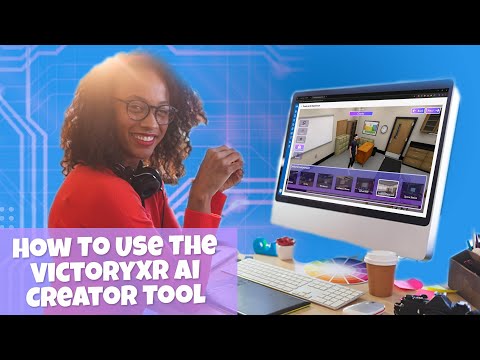
Build your own AI experiences in a web browser. In Nexus, select the VXRLabs tile, then AI Creator Studio. Describe what you’d like to create, then choose:
Lesson
A virtual lecture directed by a virtual instructor.
Scenario
A conversational scenario that simulates a real-life conversation with a virtual avatar, such as a job interview.
Select Tutorial in the top-right corner of the studio for guidance. Browse experiences from VictoryXR and other educators in the AI Library, and open AI lessons in-headset from the AI Lesson Library module. AI can make mistakes, so always review important information.
This walkthrough was recorded in early 2025, so some screens in Nexus may look a little different today.
Mixed Reality Creator Space
Bring Creator Space spawnables into your real classroom. VXRLabs guides everyone through aligning their play spaces so multiple users can share the same mixed reality experience. Mixed Reality is supported on Meta Quest 2, 3, 3S, and Pro headsets.
Knowledge check
0 of 4 correct
Answer every question correctly to complete this module. You can try again as many times as you need.
1. You want every student in the room to be able to move a 3D model. How should you bring it in?
2. What does a Layout let you do?
3. In Nodulus, what do green flow ports pass between nodes?
4. In AI Creator Studio, which option creates a conversation with a virtual avatar, such as a mock job interview?
Plan with the Asset Catalog, assign work with classes and lesson plans, and watch learning happen with Student Metrics and S.A.N.T.A.
20 min 3-question knowledge checkNot started
Your teaching loop
Nexus connects everything you’ve learned so far into one repeatable cycle.
1. Plan
Find content in the Asset Catalog and build a lesson plan.
2. Assign
Assign the lesson plan to a class. It lands in students’ To-Do Lists.
3. Experience
Students complete the experiences in VXRLabs, together or on their own.
4. Observe
Monitor with S.A.N.T.A. and review Student Metrics.
5. Adjust
Interpret the evidence and plan next steps with the Cycle of Knowledge.
Create a class
Open Educator Center > My Classes, or Organization Management > Classes & Groups.
Select New Class, enter a name, search for and select the instructor, then select Create Class.
Select Manage Users to add students who are already users in your organization.
Classes connect an instructor to specific students so you can view metrics and assign lesson plans. Groups bring users together without an assigned instructor.
Find content in the Asset Catalog
The Asset Catalog is a database of VictoryXR’s immersive content. Filter by platform, subject, and asset type, including 2D Video, 360° Field Trip, 3D Spawnable, AI Experience, Creator Space, Layout, Lesson Plan, and VXRLabs Module. You can also search by name and sort by Popular, New, A–Z, or Z–A.
In the Asset Catalog, select Add to Lesson Plan on each asset you want. They collect in the Lesson Plan panel on the right.
Select Create Lesson Plan and enter a name and description.
In Educator Center > My Lesson Plans, set the visibility and select Assign to Class.
Students in the class get a notification in their To-Do List to complete the lesson plan.
Visibility
Who can see and assign it
Public
Published in the Asset Catalog for all VictoryXR users
Organization
Published in the Asset Catalog for users in your organization
Private
Not published, and only you can see it
See learning happen
S.A.N.T.A.
The Student Analytics Nexus Teacher Administrator shows each student’s status and current module in VXRLabs. Select Details to see room information and the student’s view.
Student Metrics
See what each student completed in the app, including how they performed on built-in assessments and activities. Export metrics as a CSV file.
Quiz Maker
Create quizzes for The King’s Labyrinth in VXRLabs, or edit a quiz from your files.
My Files and Messages
Upload media for Creator Spaces, and message other users in your organization.
Put your skills to work. Complete these self-guided missions on your own schedule, in any order, and check each one off when you meet its success criteria.
75 min 6 missions + 1 bonusNot started
How missions work
Each mission builds a skill you’ll use with students. Missions replace scheduled training sessions, so you can practice whenever it suits you. Complete missions 1–6 to finish the module. The Nodulus mission is an optional bonus.
Before you start
Missions work best in a Meta Quest headset. On a computer, use the keyboard controls from Module 8. Stuck on a step? Each mission links to the matching section of the VXRLabs documentation, and the Help Center in Nexus has video tutorials and live chat.
Your missions
0 of 6 required missions complete
1
Launch pad
10 min Headset + Nexus
Open VXRLabs and select Sign In with your Nexus email and password.
Open Profile and set your display name and avatar.
In Settings, choose Seated or Standing tracking mode and set your height.
Select Play Now and explore the Catalog filters by module type and subject.
Success looks like: You’re signed in and can see licensed experiences in the Catalog.
Filter the Catalog to Conversational AI and open an experience such as Thomas Edison, Harper Lee, Rental Negotiation, or the AI Student Classroom Teaching Simulator.
Ask at least three questions, including one follow-up question.
Select the settings cog to review the transcript and see the AI’s listening radius.
Optional: In Nexus, open AI Creator Studio and describe an experience you’d like to build for your course.
Success looks like: You can describe how your students would use a conversation like this one.
With your missions complete, you’ve done everything a VR lesson requires: signed in, hosted, explored content, built a space, talked with AI, and assigned a lesson plan. In Module 12, you’ll turn those skills into a complete lesson design.
Part 3 · Module 12
Capstone: Design Your Spatial Lesson
Bring everything together. Design a spatial lesson you can teach this term, with a measurable objective, a purposeful VR experience, and a rubric to assess it.
60 min Lesson design projectNot started
How the capstone works
Work through the planner below. Your answers save automatically in this browser, and your seed idea and saved objective carry over from earlier modules. When every required field is complete and you’ve built the lesson plan in Nexus, the module is complete. You can preview and print your lesson plan, or save it as a PDF, to share with colleagues.
Measurable
Your objective uses an observable Bloom’s verb (Module 4).
Purposeful
Your VR experience is direct and hands-on, not just watching (Module 4).
Assessable
You know what evidence you’ll collect and how you’ll judge it (Modules 5 and 10).
Spatial lesson planner
1
Lesson basicsWhat you’re teaching, and to whom
2
Learning objectiveMeasurable, with an observable Bloom’s verb
Tip: Use the objective builder in Module 4, then save it here.
Students responded most positively with 5–10 uses (Module 6).
3
Spatial experienceWhat learners will do in VXRLabs
Experience types* choose all that apply
How learners will participate*
4
Lesson flowBefore, during, and after the experience
5
Evidence and assessmentHow you’ll know learners met the objective
Rubric* at least two criteria, each with a Proficient description
Criterion*
Beginning
Developing
Proficient*
Exemplary
6
Build it in NexusTurn your design into a real lesson plan
Your progressComplete every section to finish the capstone
Ten questions from across the course. Answer at least eight correctly to pass. If you don’t pass, you’ll see which modules to review, and you can retake it right away.
Locked for now. Complete all 12 modules to unlock the final assessment. You’ve completed 0 of 12.
Final assessment
Pass mark: 8 of 10
1.A biology instructor wrote, “Students will understand photosynthesis.” Which revision is most measurable?
2.For a lesson on negotiation skills, which option is the most direct, purposeful experience on Dale’s Cone?
3.An instructor wants evidence of what each student completed during an asynchronous VR assignment. Where should they look?
4.A student’s Student Metrics show many unsuccessful attempts before a success. What does performance assessment encourage you to do?
5.You want colleagues in your organization to find and reuse your lesson plan. Which visibility should you choose?
6.What must happen before a newly added instructor can access paid VXRLabs content?
7.Your class is in a multiplayer room and you need everyone’s attention right away. What’s the best host action?
8.According to VictoryXR’s research with Baton Global, how often should instructors plan to use VR to maximize student benefit?
9.Which tool lets students build interactive logic inside a Creator Space, such as a door that opens after a correct quiz answer?
10.Which change makes a VR review session more game-like without lowering rigor?
Claim your certificate
Pass the final assessment to claim your certificate. Here’s a preview of what you’ll receive.
Congratulations on passing! Enter your name exactly as you’d like it to appear on your certificate. Your certificate is generated as soon as you submit, a PDF copy is emailed to the address you enter, and VictoryXR keeps a record of your completion.
The certificate form didn’t load. Refresh the page and try again, or email support@victoryxr.com with your name, organization, and certificate ID .
Congratulations!
You’ve earned the Spatial Learning Micro-Certificate. We’ve emailed a PDF copy to you. You can also download or print it here, and add it to your LinkedIn profile.
Certificate of Completion
Spatial Learning Micro-Certificate
This certifies that
has completed the VictoryXR Professional Development & Micro-Certification Series, demonstrating the ability to design, deliver, and assess spatial learning experiences with VXRLabs and VXR Nexus.
Keep your certificate ID for your records. Need to fix your name?
Certificate of Completion
Spatial Learning Micro-Certificate
This certifies that
Your Name
has completed the VictoryXR Professional Development & Micro-Certification Series, demonstrating the ability to design, deliver, and assess spatial learning experiences with VXRLabs and VXR Nexus.
Month Day, YearDate issuedVXR-SLMC-XXXXXXCertificate IDVictoryXRIssued by
Downloading the APK directly will not include the ability to automatically update. When VXRLabs updates, you will need to come back and download the latest version here.
Downloading the APK directly will not include the ability to automatically update. When VXRLabs updates, you will need to come back and download the latest version here.
Downloading the APK directly will not include the ability to automatically update. When VXRLabs updates, you will need to come back and download the latest version here.
Downloading the APK directly will not include the ability to automatically update. When VXRLabs updates, you will need to come back and download the latest version here.